Menu import

How to turn your existing PDF or Excel menu into an online menu

Already have your menu in a PDF, Excel spreadsheet, Word document or photos? Upload it to ListoQ and let AI prepare the categories and dishes. You start with content to review instead of an empty page, then publish an online menu guests can open on their phones.

Updated September 14, 20264 min read

Part 1

Which menu files can you upload?

Choose the latest version with readable dish names and prices.

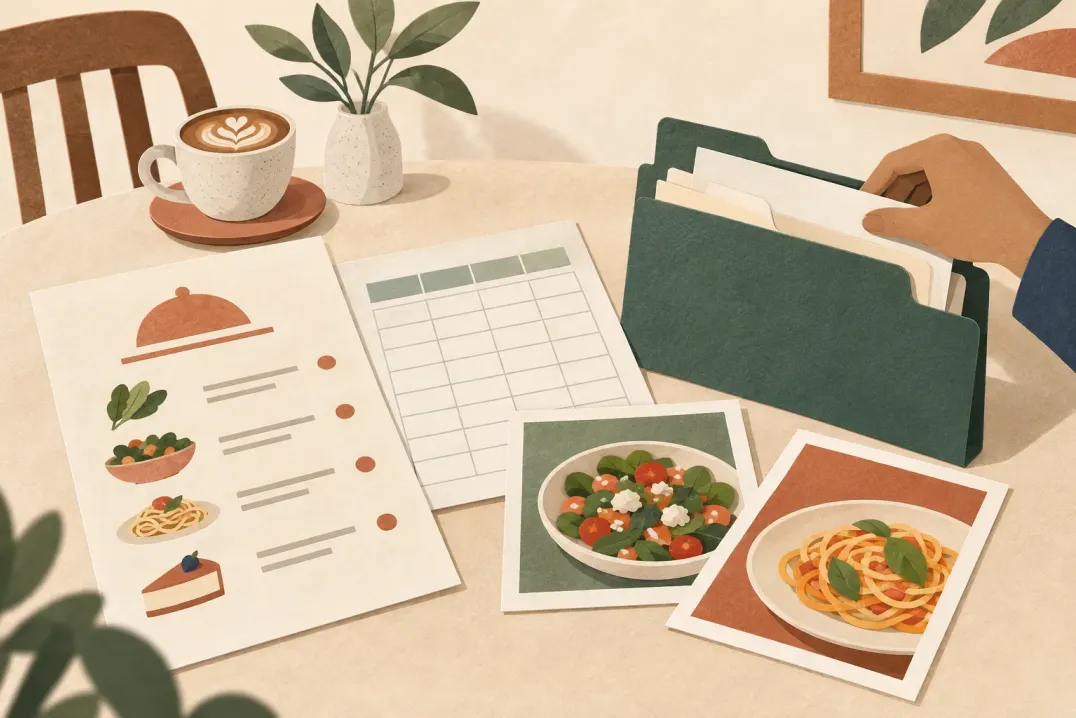
Use the file you currently send to your printer or keep for price updates. For example, a cafe might have a food menu in PDF and a drinks list in Excel: both can go into the same import. Check that they cover different sections rather than two versions of the same menu.

Your fileHow to prepare it
PDF (.pdf)Include all menu pages. Use a clear export with readable text and prices.
Excel (.xlsx)Keep each dish and its price together in a row, with clear category headings. Save older .xls files as .xlsx first.
Word (.docx)Use clear headings for categories and place prices beside the dishes. Save older .doc files as .docx.
Photos (.png, .jpg, .jpeg)Capture the whole page in good light. Avoid glare, blur and cropped prices.

You can select up to 8 files per import, up to 10 MB each. Prepare all pages before starting. If your file has another format, export it to one of the supported formats above; changing the filename extension alone does not convert it.

Part 2

From uploaded file to editable menu

Upload, review and apply the result in your catalog workspace.

  1. 01

    Open your catalog

    Register with ListoQ, create your venue and catalog, then open Data management. Start the AI menu import there.

  2. 02

    Choose files and start extraction

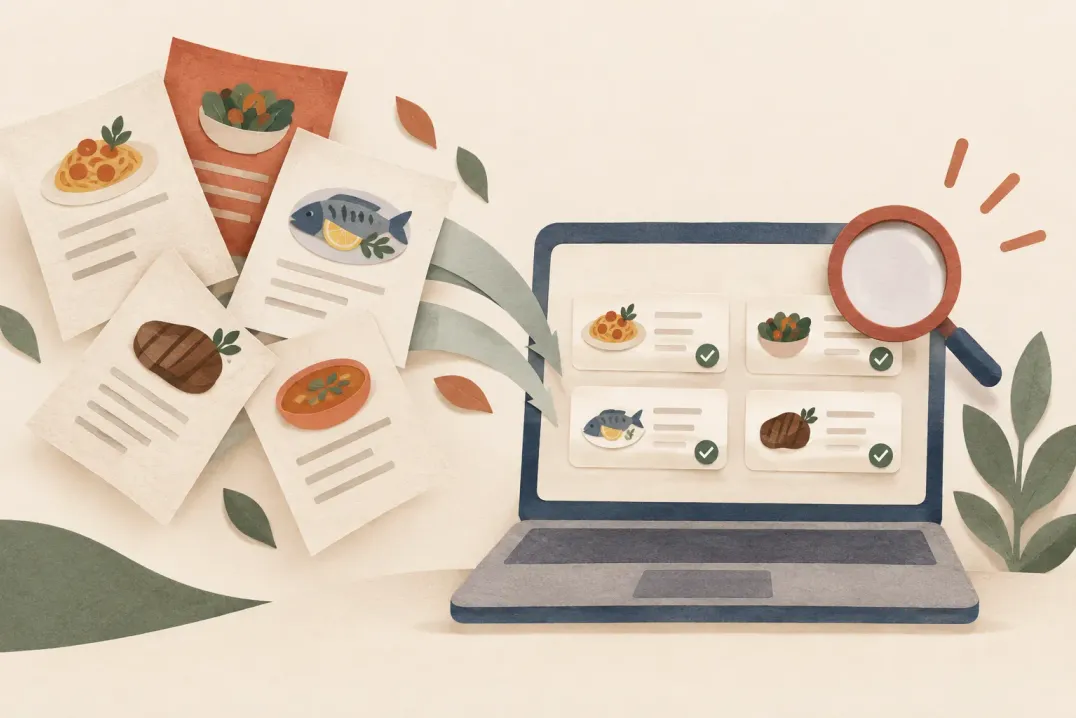
    Select your menu files and click Upload & extract. ListoQ reads the content and prepares categories and items. You can keep working in the admin area and return when the result is ready.

  3. 03

    Review the extracted structure

    Compare the categories and dishes with your original. Remove unwanted entries from the import review. AI can misread a price or miss a dish, so keep the source file nearby.

  4. 04

    Apply and refine

    Apply the reviewed result to your menu. Then edit names, descriptions and prices in Data management, and add any missing information or dish photos.

Applying an import replaces the current draft

The imported menu replaces all categories and items in the current draft, including unpublished edits. It does not merge with that draft. Your published menu stays unchanged until you publish again. Check that you are working in the intended catalog before applying.

Part 3

Check the details, then share your menu

A short review makes the extracted content ready for guests.

  • Compare every dish and price with the source, including decimal separators and missing entries.
  • Check category order, descriptions and the catalog currency.
  • Verify ingredients and allergen information against your own records; do not treat AI output as confirmation.
  • Open the preview on a phone and check readability, photos and every language you plan to publish.

Adjust the colours, fonts and price display in the preview studio, then publish the catalog when it is ready. Guests see the published version, so uploading or applying a file alone does not put it online.

Share your menu link and download a QR code from the venue’s QR studio for table cards or printed materials. Later, edit dishes and prices directly in ListoQ and publish the changes; you do not need to re-import the original file for each update.

Questions

Questions this article gets asked

Will my online menu look exactly like the PDF?
No. The import extracts menu content into categories and dishes. You choose the online menu’s colours and fonts separately; the printed layout is not copied.
Can I import several photos of a printed menu?
Yes. PNG, JPG and JPEG are supported. Select up to 8 files together, each no larger than 10 MB. Make sure each page is readable and included only once.
Is AI import unlimited during the trial?
No. Trial imports are limited, and daily limits apply per venue. Paid subscriptions include expanded usage. The upload screen explains the applicable limits.
Which files can I import?
PDF, Excel and Word files, and photos of a printed menu in PNG or JPG. One import reads up to 150 items.
Is anything published straight after the import?
No. You first review the categories and dishes the import found and edit them, then apply them to your draft. Guests see the changes only after you publish.

Next Step

Want to turn your food and drink menu into a clear customer page?

Start with your real content and keep one access point as your offer changes.