Article

QR code menus: how they work and how to set one up

A QR code menu is simple in principle and easy to get wrong in practice. Most failures are physical: the code is too small, in the wrong place, or printed on a surface that catches the light. This article follows the whole chain, from the code on the table to the menu on the phone.

Updated September 14, 20269 min read

Part 1

What a QR code menu actually is

Two separate things that people usually treat as one.

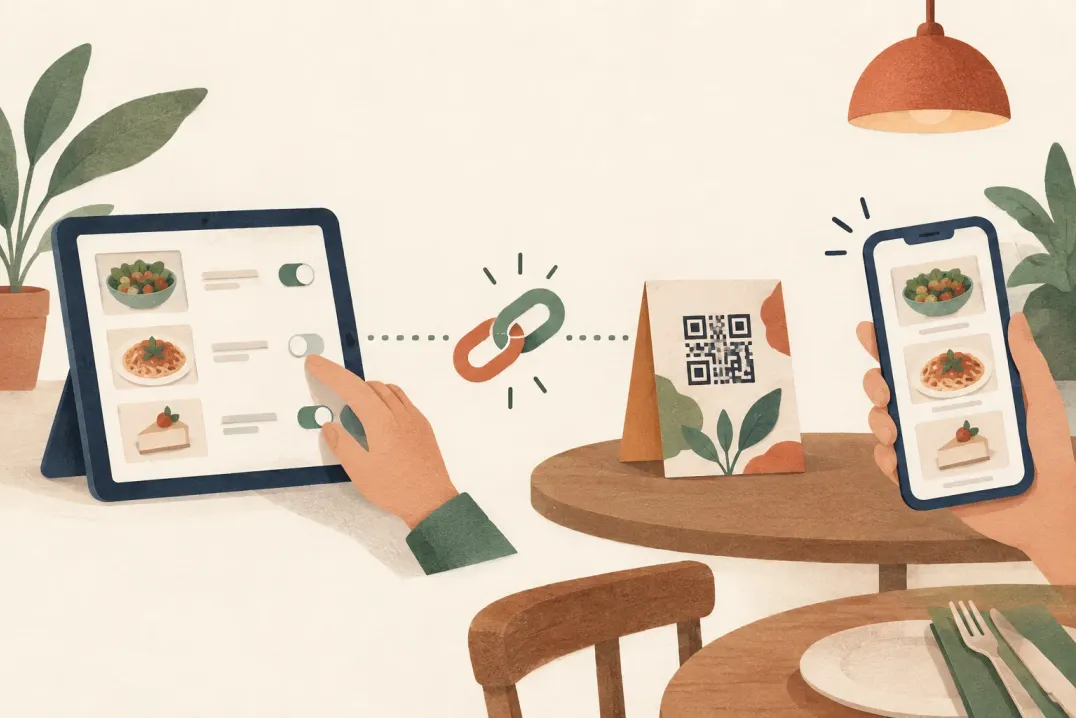
A QR code menu is two separate pieces. The first is a page holding your menu content: categories, dishes, prices, descriptions, allergens. The second is a QR code, which is nothing more than a printed encoding of that page's address.

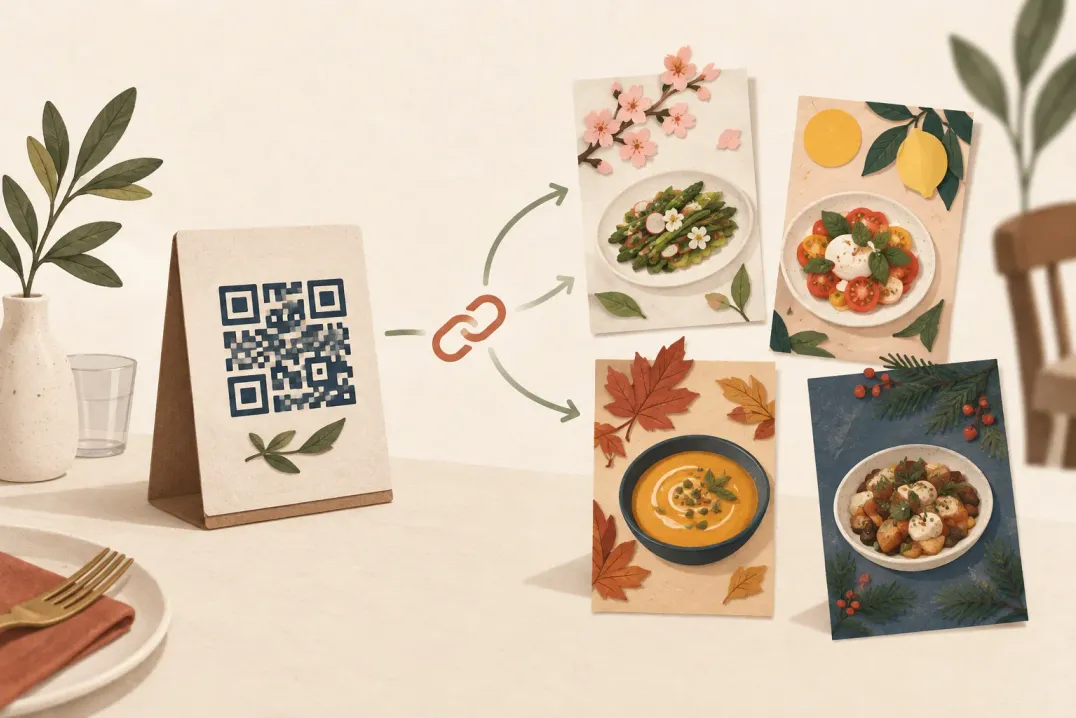
The distinction matters because it explains the main advantage. Changing the menu changes the page. It does not change the address, so it does not change the code. A card printed in March still works in November, after the menu behind it has been rewritten three times.

It also explains the main risk. If the address changes, every printed code pointing at the old one stops working. Choosing an address you will not need to change is the single most important decision here, and it is made before anything goes to print.
Part 2

How a scan works, step by step

Five steps, four of which happen on the guest's phone without anyone thinking about them.

Knowing the chain helps, because when a QR menu fails it fails at one specific link, and the fix is different at each one.

  1. 01

    The guest points the camera at the code

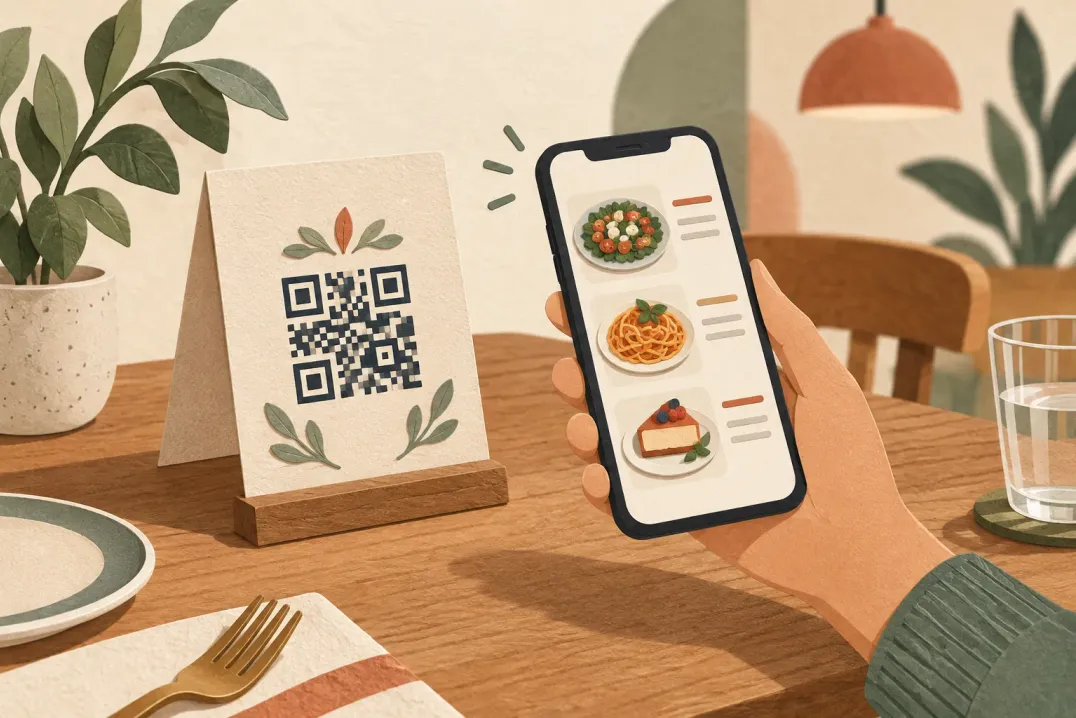
    Phone cameras read QR codes directly. Nothing needs to be prepared on the guest's side; if the code is legible, a link appears on screen.

  2. 02

    The phone decodes the address

    The code's pattern resolves to a web address. This is where a damaged, warped or undersized code fails, because the phone either reads nothing or reads something corrupted.

  3. 03

    The browser opens the menu page

    The address loads over the network. On a busy site with weak signal this is where the wait happens, which is why a menu page should stay light.

  4. 04

    The menu renders on the phone

    Categories, dishes, prices and allergens appear as one scrollable page, sized for the screen the guest is holding.

  5. 05

    The guest reads and decides

    From here it is your menu content doing the work: structure, wording, prices and photos. The technology has finished its job.

Part 3

Where to put the code

Placement decides scan rate more than anything else on this page.

A code the guest has to look for is a code that does not get scanned. The rule is simple: put it where the guest's attention already is, at the moment they are ready to read the menu.

LocationWorks becauseWatch out for
Table tent or table cardSits in the guest's eyeline as they sit downGets moved, knocked over, or hidden behind condiments
Table sticker or laminated insertCannot be moved or taken awayGlare from overhead lights and wear from cleaning
Window or doorReaches people deciding whether to come inDaytime reflections; it has to work from outside the glass
Counter or till pointRight where takeaway guests queue and waitRead while standing, so it needs to be printed larger
Takeaway packaging and receiptsTurns one order into a repeat visitSmall print sizes fail; keep the code simple and high-contrast
Social profiles and messagesThe same address works as a plain link, with no code at allNothing physical to break, but keep the link where people look

Part 4

Printing rules that keep scans working

Six checks before anything goes to print.

Almost every unreliable QR menu is a printing problem rather than a software problem. Run this list before you order a batch, and test the proof with a real phone before you order the rest.

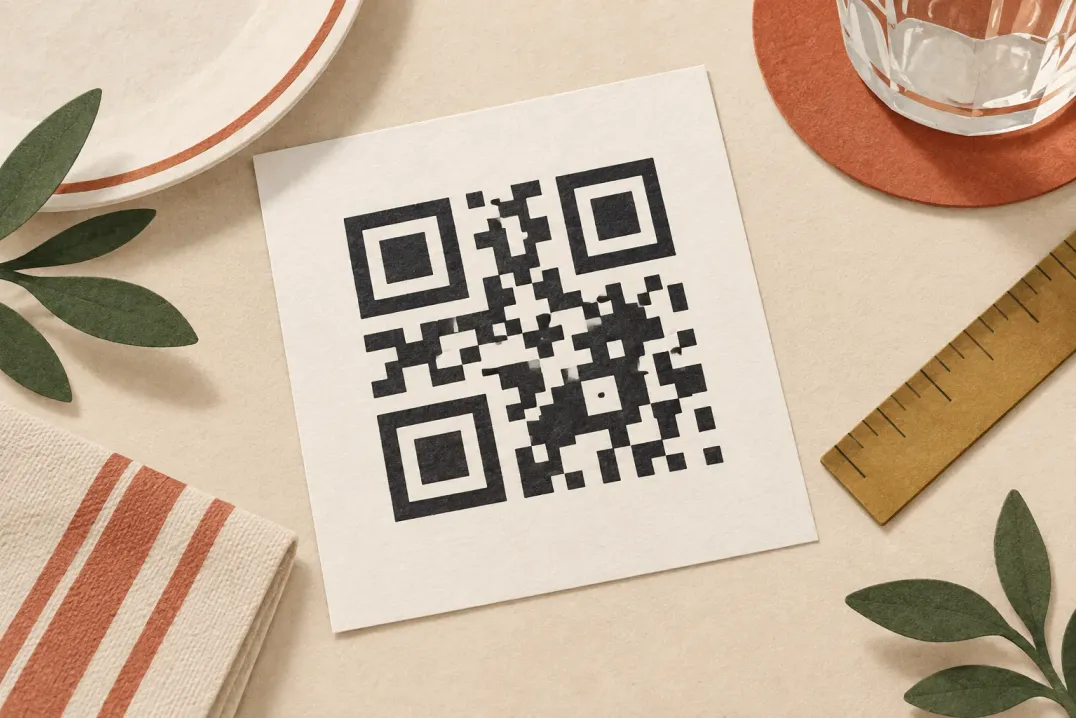
  • Print the code at least 3 cm across for table use, and larger for windows and counters where people scan from a distance.
  • Keep a clear margin around the code. Patterns and text pressed against the edge break decoding.
  • Keep strong contrast: a dark code on a light background. Light-on-dark and low-contrast brand colours are where scans start failing.
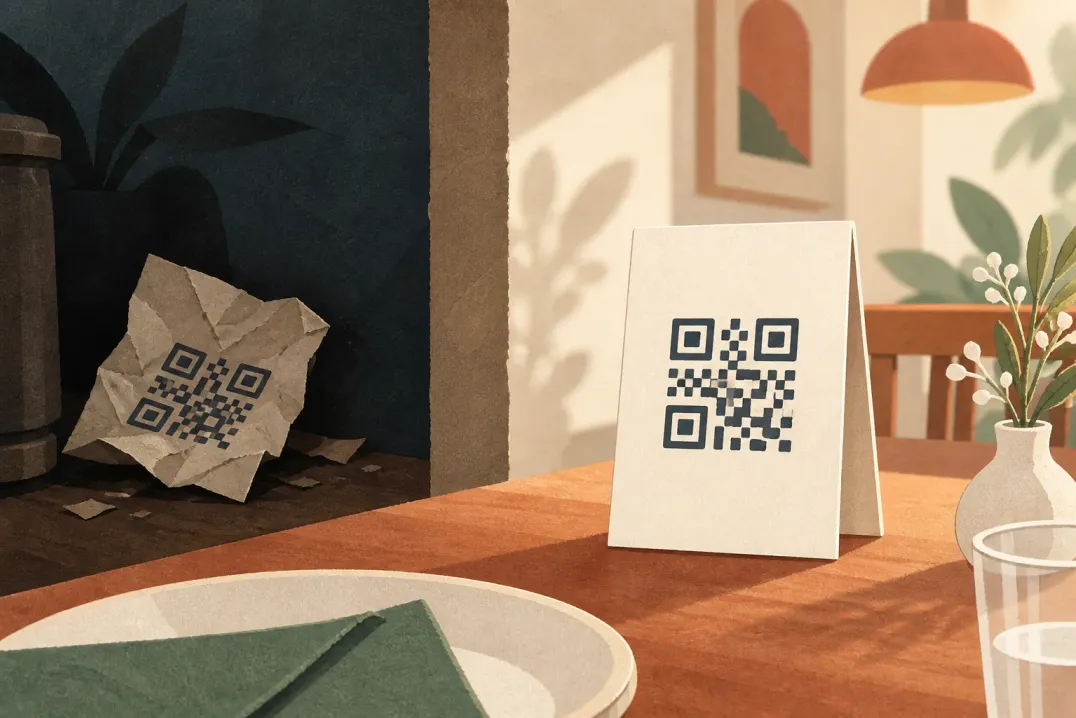
  • Avoid gloss and lamination under direct light. Matte finishes scan where glossy ones reflect.
  • Add one line of instruction beside the code, in the languages your guests read, so nobody has to guess what it is for.
  • Test the printed proof at your worst table, in evening light, on an older phone, not on the designer's screen.

Test before the full print run

Order one card, put it on a real table at the time of day your room is darkest, and scan it. A batch of a hundred cards that fail at table nine is an expensive way to learn about lighting.

Part 5

Keeping printed codes working when the menu changes

The part that decides whether you ever reprint.

A QR code cannot be edited once it is printed. Whatever address it held on the day it went to press is the address it holds forever. The question is not whether you can change your menu, because you always can, but whether the address stays put while you do.

Menu content and menu address are separate things. Rewriting every dish, changing every price, adding a whole new category: none of that touches the address, so none of it touches the printed code.

The address is only at risk when the menu itself moves, through a new web address, a different platform, or a renamed venue page. That is worth planning for before printing, because it is the one change that invalidates paper you have already paid for.

Print against an address that outlives the name

A ListoQ QR code encodes a permanent address tied to the venue rather than to its current public name, so a code printed today keeps resolving even after you change the menu's public address.

Part 6

What to avoid

Six failures seen often enough to be worth naming.

None of these are exotic. They are the things that turn a working QR menu into one that staff quietly stop pointing guests at.

  • Printing the code before deciding on the address. If the address changes later, the whole batch is waste.
  • One code for the entire room, on a poster by the door. Guests will not walk back to it.
  • A code printed over a photograph or a brand pattern. Decoding needs a clean, high-contrast field.
  • A menu page that is heavy to load. Guests on a weak signal give up faster than you expect.
  • No printed fallback for the essentials. Keep something readable for guests who cannot or prefer not to scan.
  • Never testing again after the first week. Cards fade, get scratched and get moved, so re-scan them periodically.

Questions

Questions this article gets asked

What does a guest need in order to open a QR menu?
A phone camera and a browser. The camera reads the code directly, and the menu opens as an ordinary web page, so there is nothing for the guest to set up beforehand.
What if a guest's phone cannot scan the code?
Give them the link. The same menu address works typed or tapped, so it can sit on the card as text, in a social profile, or in a message. Keeping a small printed version of the core menu is also reasonable.
Can I change the menu after the codes are printed?
Yes, and that is the point of the split between code and content. The code holds an address; the menu behind it can be rewritten as often as you like without reprinting anything.
How big should a QR code be?
About 3 cm across for a table card, and larger for windows, counters, and anywhere guests scan from more than an arm's length. When in doubt print bigger: an oversized code always scans, an undersized one sometimes does not.
Can one QR code serve different menus, such as lunch and dinner?
Yes. The code belongs to the venue, and the venue shows whichever menu you have made live. Keep lunch and dinner as separate menus and switch between them; the printed code opens the one that is live.

Next Step

Want to turn your food and drink menu into a clear customer page?

Start with your real content and keep one access point as your offer changes.