Article

Update a QR menu without reprinting the code

A QR code can stay on the table while the menu behind it changes. In ListoQ, edit the catalog draft, check the result and publish. Guests then see the current dishes and prices through the same venue QR code. Here is a practical routine for price changes, sold-out dishes and seasonal menus.

Updated September 19, 20263 min read

Part 1

Decide what needs to change

A price change, a sold-out dish and a seasonal launch need different edits.

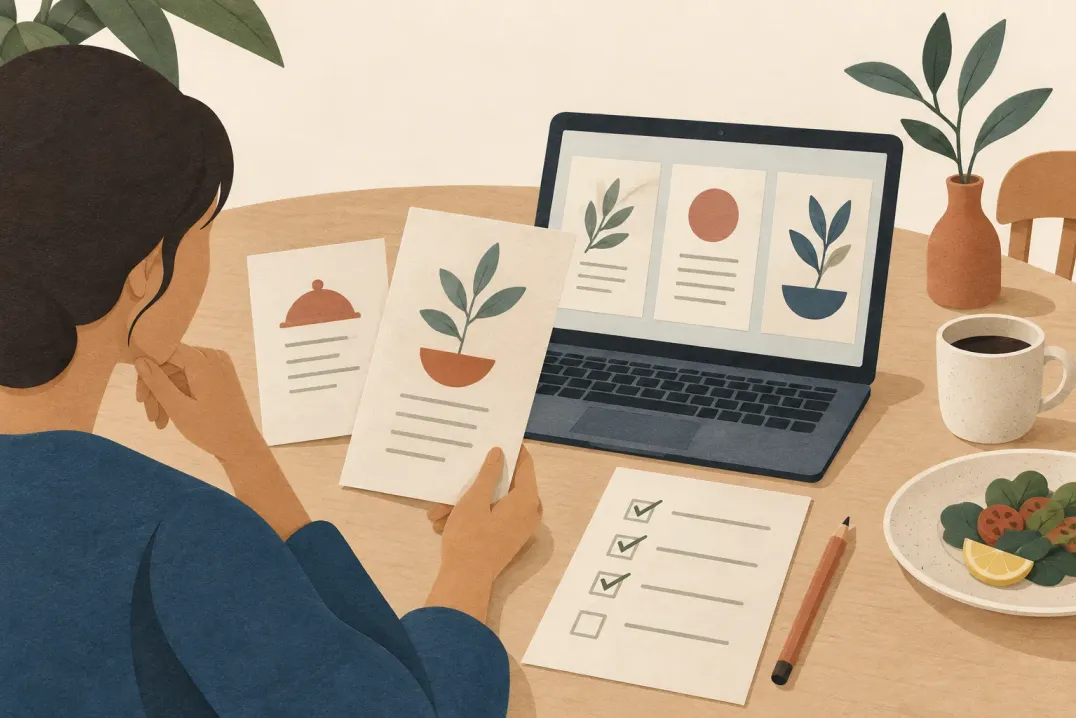
Before opening the editor, collect the changes in one list. For example, a cafe may need to change a cappuccino price, hide a sold-out cake and replace a winter soup. Record the intended price and availability for each item so the final review has a clear reference.

  • Price change: edit the affected item and check its size variants, such as a small and large coffee.
  • Sold-out dish: hide the item instead of deleting its description and photo. Show it again when it returns, then publish.
  • Seasonal change: prepare the relevant dishes and categories together. Check the whole selection before making it live.
Part 2

Edit the draft, then publish

Guests keep seeing the last published version while you prepare changes.

  1. 01

    Open the right catalog

    Select the venue and the catalog you intend to publish. If you keep separate breakfast and bar catalogs, check which one should be live: a venue has one live catalog at a time.

  2. 02

    Update the content

    Change prices and descriptions, add seasonal dishes or hide unavailable items. If a recipe changes, review its ingredients, allergens and calorie information too. Update names and descriptions in every menu language you offer.

  3. 03

    Review the complete draft

    Use the preview to check category order, photos and price display. Review all unpublished edits, not only the last item you changed: publishing makes the catalog draft visible to guests.

  4. 04

    Publish when the menu is ready

    Publish the reviewed catalog. Saving edits alone does not update the guest menu. Use a final review against your change list to avoid releasing an unfinished seasonal selection.

Part 3

Test the menu your guests open

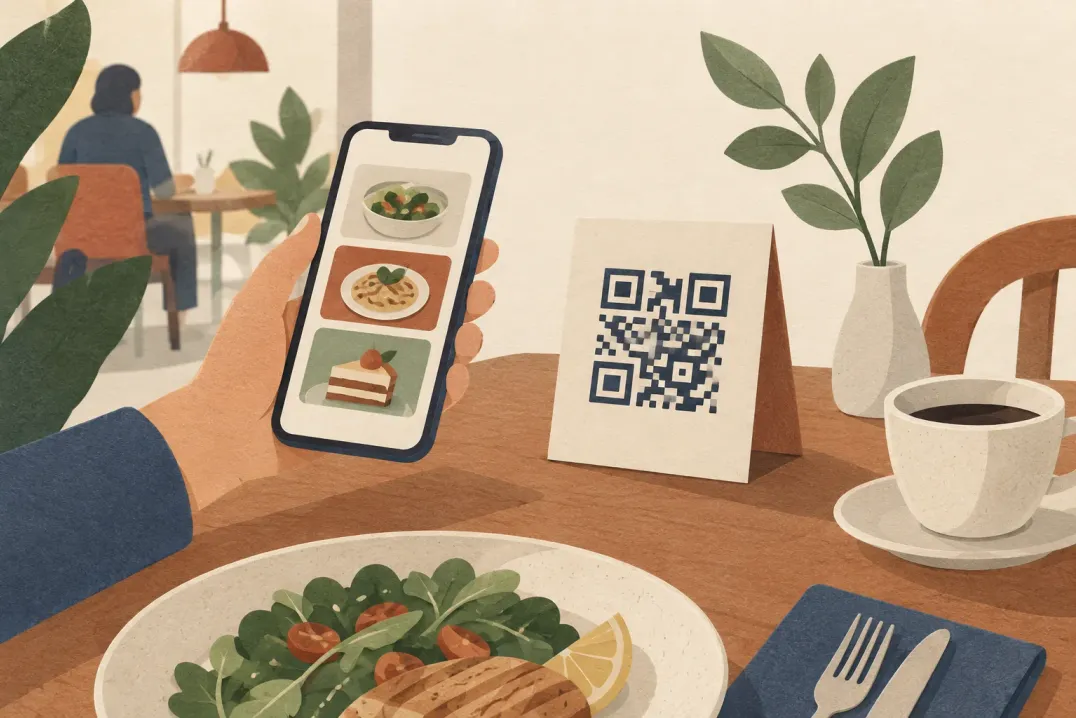
Check the published page through the actual QR code on your tables.

  • Scan a printed venue QR code and open the menu in the browser.
  • Find each changed dish and check its price, including size variants.
  • Confirm that hidden dishes are absent and new seasonal dishes are visible.
  • Switch through the menu languages and check the edited names and descriptions.

Keep the venue’s stable QR code from ListoQ’s QR studio for your printed materials. Updating the catalog does not require a new code. A separately printed price or dish name does not update automatically: replace those materials when their content changes.

Questions

Questions this article gets asked

Does saving a price immediately change the guest menu?
No. Saved edits stay in the draft until you publish. After publishing, reopen the guest page and check the price there.
Should I import the original file again for every update?
For a few changes, edit the existing draft directly. An import replaces the draft’s categories and items rather than merging with them, so review the result carefully if you use it for a complete menu replacement.

Next Step

Want to turn your food and drink menu into a clear customer page?

Start with your real content and keep one access point as your offer changes.